
Lafayette Managed IT Services Provider Shares Best Practices for Organizing SharePoint Files
Lafayette, United States - April 2, 2026 / InfoTECH Solutions, L.L.C. - Lafayette Managed IT Services Company /

Managed IT Services Provider in Lafayette Explains SharePoint Management
Gartner reports that 47% of digital workers struggle to locate the information they need to perform their jobs effectively. Often, this challenge is directly related to disorganized content.
Microsoft SharePoint offers solutions to help you centralize document storage. However, you may face the same difficulties again if you neglect SharePoint document management.
| “Microsoft SharePoint offers a wide range of features to help you organize your documents, but they won’t be of much help if you aren’t using them correctly.” – Brian Leger, Co-Founder of InfoTECH Solutions |
How you store documents on your SharePoint site partially depends on your internal business processes. Some documents may be more crucial to more team members. Therefore, you may not want to control access as strictly as you would with highly confidential documents.
In this article, a reliable Lafayette managed IT services provider explains the best practices you should follow regardless of your unique needs. We will show you how to organize content in Microsoft SharePoint and discuss the benefits of doing so.
What Are The Benefits of SharePoint’s Document Management Solutions?
Document organization challenges account for 21.3% of productivity losses, but you can avoid that situation. SharePoint’s document management gives teams a clear way to store, organize, and control documents. It reduces disorganization, facilitates teamwork, and promotes compliance without requiring separate tools or manual steps.
Here is an overview of the benefits of managing documents with SharePoint.
| Centralized Access | SharePoint stores files in one place with permission-based access to reduce confusion. |
| Streamlined Collaboration | Staff members can edit documents simultaneously and utilize Microsoft 365 tools without switching apps. |
| Time Savings | Metadata and filters make it easier to search and find the correct document. |
| Stronger Compliance | SharePoint supports audit trails, retention policies, and classification settings. |
| Better Security | Role-based access controls, encryption, and logging reduce the risk of unauthorized document access. |
| Scalability | SharePoint scales to support more users and departments without needing significant changes. |
How to Organize Your Document Libraries in SharePoint
In SharePoint, document libraries are used to store, organize, and manage files within a SharePoint site. They allow teams to collaborate on documents, track versions, set permissions, and apply workflows. However, without proper organization, libraries can become cluttered, confusing, and hard to control.
Here are some steps you should take to keep your document libraries organized.
1. Review Existing Content
Start by checking what is already stored in your current SharePoint libraries. Identify outdated files, unnecessary duplicates, and folders with unclear access permissions. This step helps reduce clutter and prevents the accidental exposure of sensitive content during reorganization.
2. Define Clear Naming Conventions
Establish a consistent naming format for files and folders, incorporating elements such as project name, date, and version. This makes it easier to locate content and improves SharePoint’s search function. Teams can also avoid confusion caused by inconsistent labels or unclear abbreviations.
3. Map Out Library Structure Based on Use Cases
Design each document library around how teams use the content. Use site collections, document sets, and folders to group related content, such as marketing collateral or client contracts. This avoids disorganized file storage and reduces the chance of documents being saved in the wrong place.
4. Use Metadata Instead of Deep Folder Structures
Apply columns and custom metadata to classify documents by category, owner, or status. This allows users to sort and filter files without having to click through multiple layers of folders. It also supports better automation and improves how SharePoint displays content.
5. Create Permission Groups
Set up permission groups based on roles and apply these groups at the library or folder level. Avoid assigning access to individuals where possible to simplify oversight and updates. This approach protects sensitive data while reducing admin overhead.
6. Customize Views
Create custom views using filters, grouping, and sorting rules tailored to specific team needs. For example, show only active documents or group files by department. This makes it easier for users to find relevant content without changing how the data is stored.
7. Provide Training
Give staff clear instructions on how to name files, tag documents, and use version history. Training helps maintain consistency across your organization and prevents the misuse of features like metadata or permissions. Usage guidelines should be documented and easily accessible.
8. Review & Adjust Regularly
Schedule periodic audits to remove inactive files, update access settings, and adjust metadata fields as needed. SharePoint libraries can proliferate, and without regular maintenance, they become increasingly difficult to use and manage. A review cycle keeps your structure aligned with changing business needs.
8 Best Practices For Document Management in SharePoint
1. Set Default Document Templates
Configure libraries with default templates for commonly used document types such as reports, meeting minutes, or client briefs. This streamlines content creation and reinforces formatting consistency across teams. It also saves time by removing the need to search for the correct template.
2. Apply Consistent Content Types Across Sites
Create and deploy custom content types to standardize document properties across libraries. This allows teams to apply the same metadata, workflows, and retention settings across different departments. It also helps enforce compliance and improve uniformity across business units.
3. Limit File Types
Configure SharePoint to block file types that are not needed for your workflows. This reduces clutter and helps users focus on relevant documents. It also reduces the likelihood of uploading content that could pose security risks or compatibility issues.
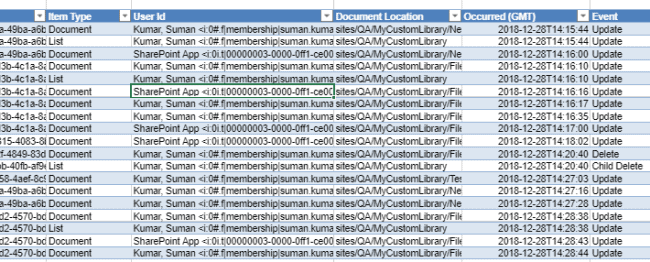
4. Regularly Audit Activity Logs
Enable auditing to track document access, downloads, edits, and deletions. Review these logs regularly to identify suspicious activity or patterns of misuse. This supports cybersecurity efforts and strengthens accountability across your organization.
Source: C# Corner
5. Set Upload Restrictions
Define upload size limits to prevent users from adding oversized files that strain storage resources. This protects library performance, especially in environments with high user activity. It also encourages teams to compress or streamline content where possible.
6. Use Check-Out For Editing
Enable the check-out feature for documents that require controlled editing. This prevents multiple users from making conflicting changes simultaneously. It also improves accountability by showing who is actively working on the file.
7. Integrate SharePoint With Other Microsoft Office Tools
Connect SharePoint to tools like Teams, Outlook, OneDrive, and Power BI to create a more seamless workflow.
These integrations reduce the need to switch between platforms, allowing users to access, edit, and share documents directly from the tools they use most. This improvement enhances productivity by up to 22%, facilitates consistent collaboration, and standardizes document management processes.
8. Enable Versioning & Retention Settings
Turn on version history to track changes and recover previous file states when needed. Also, set document retention policies that align with internal policies or compliance requirements. These practices help maintain accountability while minimizing storage waste from outdated files.
Trusted Managed Services in Lafayette for Better SharePoint Document Management
Managing documents in SharePoint requires more than surface-level configurations. You need clear rules, the right setup, and tools that match how your team works. If you’re tired of confusion or wasted time, it’s a good idea to get help from people who know how to set things up the right way.
InfoTECH Solutions helps businesses get more out of SharePoint. Our team will help you create clear naming rules, use metadata the right way, set access levels, and build libraries that fit how your staff works.
Contact a trusted Lafayette MSP today to simplify document management, improve collaboration, and build a SharePoint environment that works the way your team does.


Contact Information:
InfoTECH Solutions, L.L.C. - Lafayette Managed IT Services Company
204 Four Park Rd
Lafayette, LA 70507
United States
InfoTECH Solutions, L.L.C. InfoTECH Solutions, L.L.C. - Lafayette Managed IT Services Company
(833) 304-0397
https://infotech.us/


Original Source: https://infotech.us/sharepoint-document-management/

